

Reviewed by:
Pragati Gupta

Content Marketing Manager @ aiclicks.io
Last updated:
Expert Verified


" width="14px"><path d="M 13.864 5.629 L 13.3 5.629 L 13.3 5.6 L 7 5.6 L 7 8.4 L 10.956 8.4 C 10.379 10.03 8.828 11.2 7 11.2 C 4.681 11.2 2.8 9.319 2.8 7 C 2.8 4.681 4.681 2.8 7 2.8 C 8.071 2.8 9.045 3.204 9.786 3.864 L 11.766 1.884 C 10.516 0.719 8.844 0 7 0 C 3.134 0 0 3.134 0 7 C 0 10.866 3.134 14 7 14 C 10.866 14 14 10.866 14 7 C 14 6.531 13.952 6.073 13.864 5.629 Z" fill="rgb(255, 193, 7)" height="14px" id="H_YjfTNpn" width="14px"/><path d="M 0 3.742 L 2.3 5.429 C 2.922 3.888 4.429 2.8 6.193 2.8 C 7.264 2.8 8.238 3.204 8.979 3.864 L 10.959 1.884 C 9.709 0.719 8.037 0 6.193 0 C 3.504 0 1.172 1.518 0 3.742 Z" fill="rgb(255, 61, 0)" height="5.428500000000002px" id="PlkthQDhg" transform="translate(0.875 0)" width="10.959199999999996px"/><path d="M 6.232 5.581 C 8.04 5.581 9.683 4.889 10.925 3.764 L 8.758 1.931 C 8.032 2.483 7.144 2.782 6.232 2.781 C 4.411 2.781 2.865 1.62 2.283 0 L 0 1.759 C 1.159 4.026 3.511 5.581 6.232 5.581 Z" fill="rgb(76, 175, 80)" height="5.581099999999999px" id="WlnJ5gngE" transform="translate(0.7 8.4)" width="10.924899999999994px"/><path d="M 6.864 0.029 L 6.3 0.029 L 6.3 0 L 0 0 L 0 2.8 L 3.956 2.8 C 3.68 3.576 3.183 4.254 2.526 4.75 L 2.527 4.749 L 4.693 6.582 C 4.54 6.722 7 4.9 7 1.4 C 7 0.931 6.952 0.473 6.864 0.029 Z" fill="rgb(25, 118, 210)" height="6.589883930775992px" id="x_rSW275p" transform="translate(7 5.6)" width="7px"/></g></svg>)
AIclicks already shows you what moved: visibility by model, the prompts you're gaining and losing, the competitors taking your spots, and the sources behind every answer.
Working out why it moved has stayed with you. You open the dashboard, then Prompts, then Competitors, then Sources, set the same date range on each, and filter by model until the cause shows up. Once you find it, you still have to go to Settings and add the prompt or competitor you realised you were missing.
But not anymore…
Introducing Clicky, our new AI visibility agent 🎉
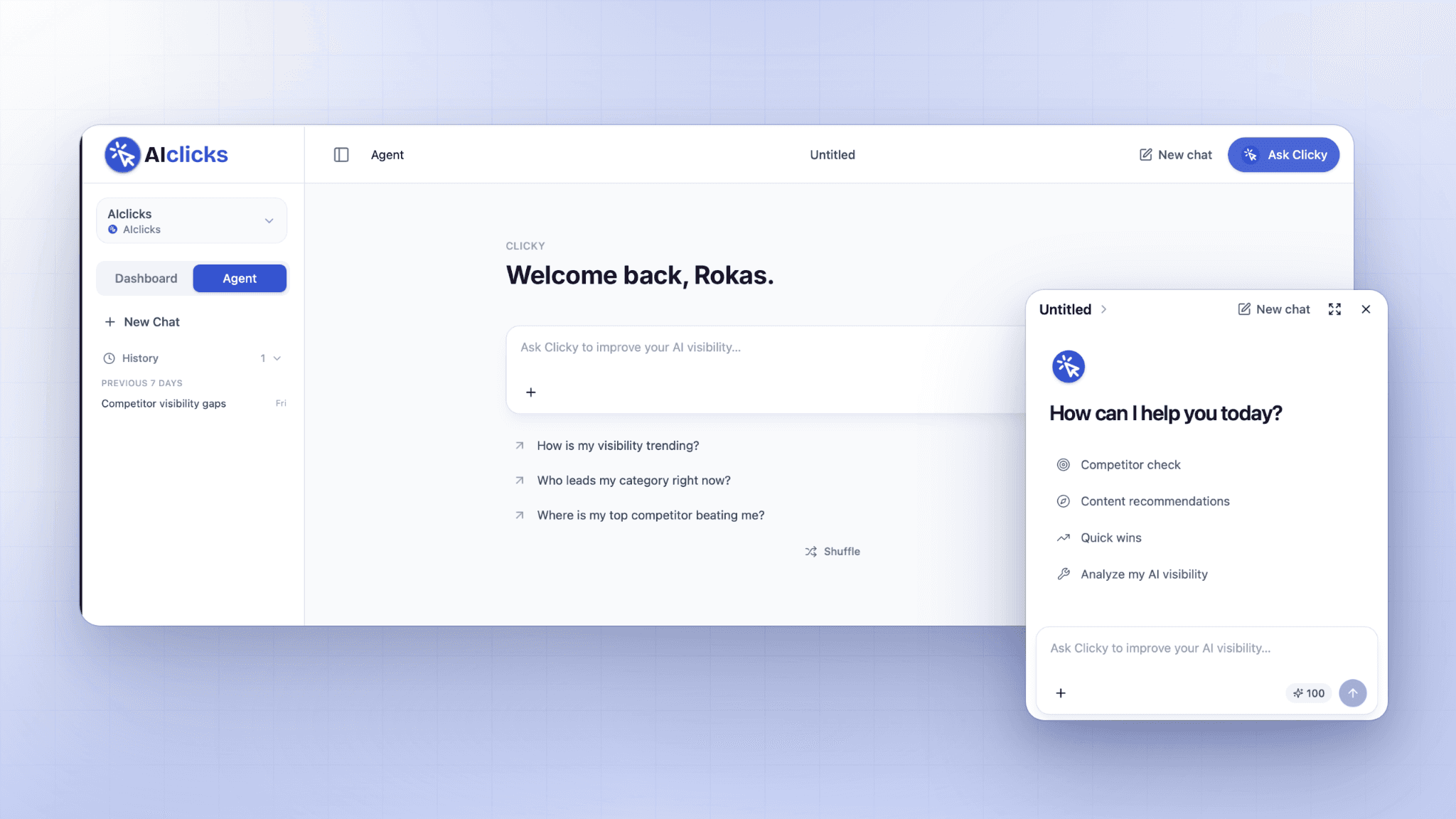
Just ask it a question and it queries your account, then answers with the numbers, a table and a chart. When the answer points to a gap, Clicky adds the missing prompt or competitor for you once you approve it.
Press Cmd+I on any page to open it. Here's more about Clicky..
What You Can Ask Clicky
Clicky has access to the same data your dashboards show: visibility, mentions, citations and sources, competitors, topics, sentiment, the model leaderboard, ChatGPT Ads, AI traffic from GA4, Search Console, outreach, and the articles you've published through AIclicks.
That means you can ask the questions you'd otherwise answer manually:
Why did our visibility drop last week?
Which prompts are we losing, and on which model?
Which sources cite our competitors and never mention us?
Which competitor gained on us in August, broken down by model?
Where should we publish next?
How is Position calculated?
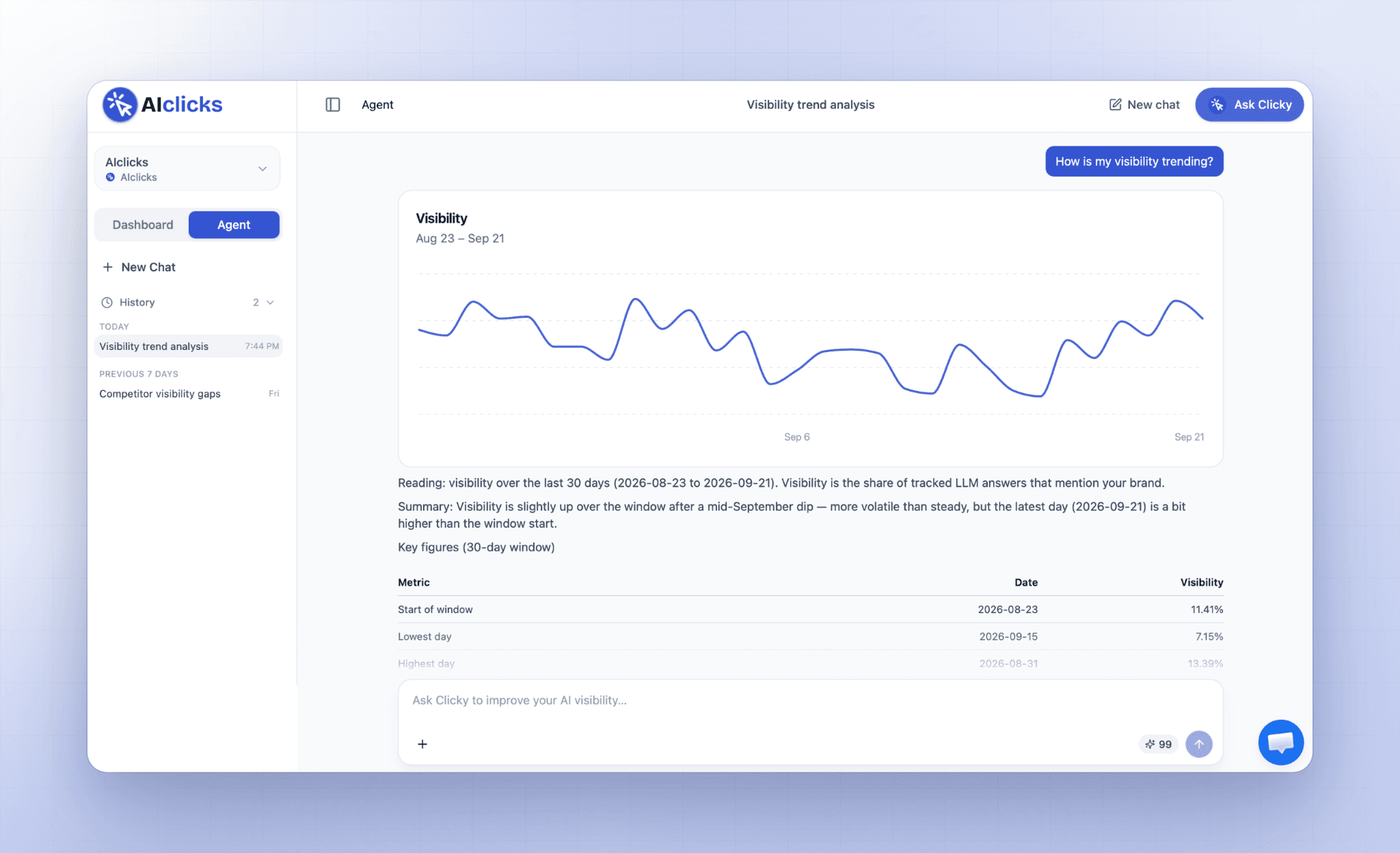
Replies are short and come with a table whenever more than one thing is being compared, plus a chart when the trend matters more than the figure. Charts stay attached to the answer when you reopen the chat.
Key Features of Clicky
Answers from your own account: every figure comes from a live query across your AIclicks data, with the table and chart behind it.
Charts inside the reply: line, bar and comparison charts that stay attached to the answer when you reopen the chat.
Context from your screen: Clicky uses the page, date range, and model and prompt filters you already have set.
Changes with your approval: add tracked prompts and competitors, note sources and create brands to pitch, each shown as a card you approve first.
Plan mode: review which data Clicky would pull, and over which dates, before it reads anything.
AI and Google traffic answers: connect GA4 and Search Console to ask about AI referral traffic and Google search performance.
Expert runs: Citation Shape Audit and Source Action Plan, one click from the sidebar or the composer.
Organised chat history: chats named after what they covered, dated in the sidebar and kept separately per brand.
Now let's look at what happens between the moment you send Clicky a question and the moment the answer comes back.
Inside Clicky: What Happens When You Ask a Question
When you send Clicky a question, it reads the context on your screen, runs queries against your AIclicks account, and writes the reply from what comes back. Everything below shapes how that answer is built.
Answers From Your Own Data
Every figure comes from a live query against your AIclicks account. If Clicky can't read something, it says what's missing instead of estimating.
Questions about the product itself, like how Position is calculated, are answered from the current AIclicks documentation and help centre.
Your Filters Carry Over
Clicky picks up the page you're on, the exact start and end dates you've selected, and your model and prompt filters.
With August selected, "what happened this month?" is answered over August 1 to 31 on the models you've filtered for. Switch from a dashboard to the Agent view and the same filters come with you, so you don't set them twice.
Plan Mode: Review the Method Before Clicky Runs
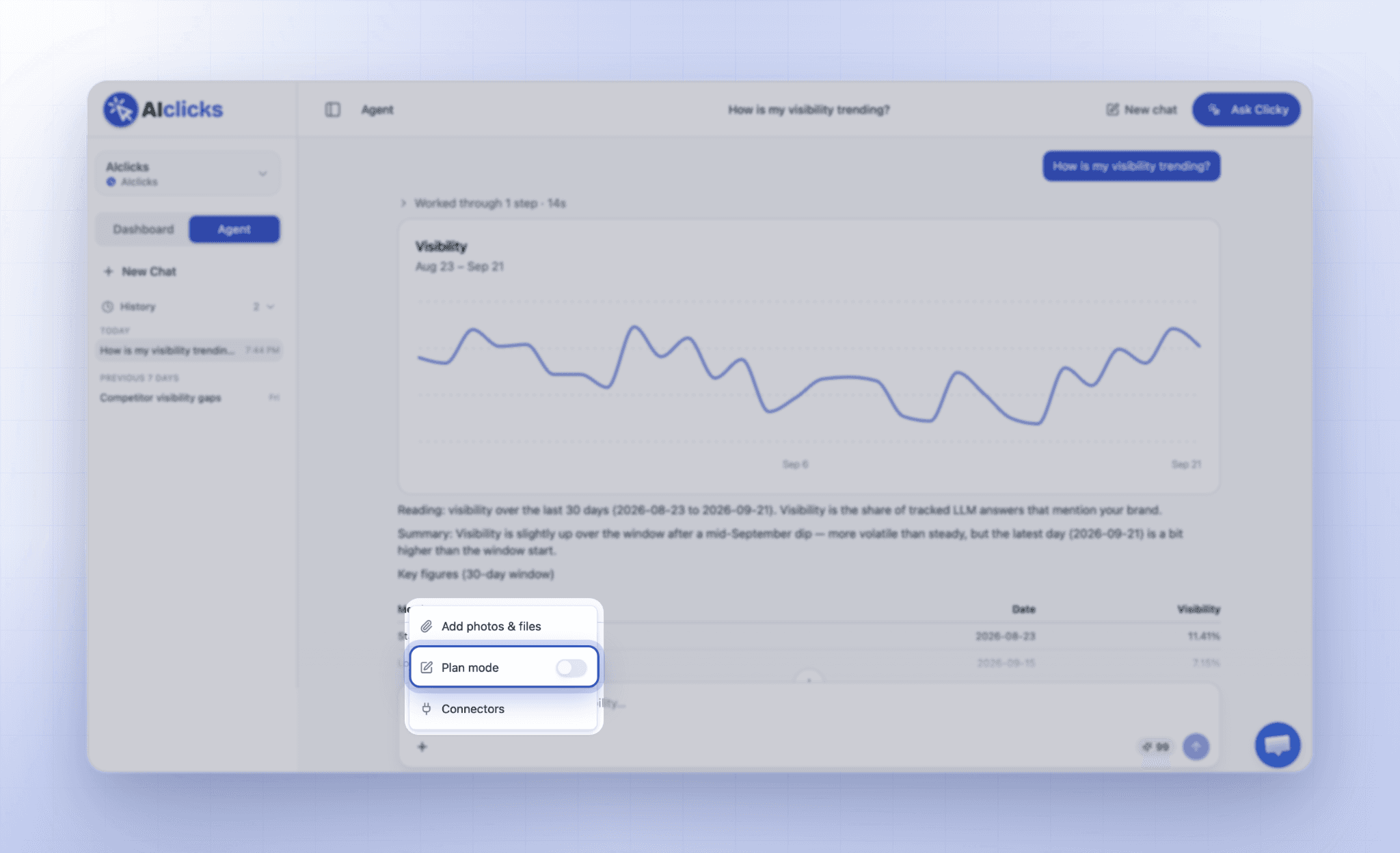
Turn on “Plan mode” and Clicky reads nothing yet. Instead, it lists the figures it would pull, the date range it would use, and the judgement calls you should settle first, such as which competitors to compare against.
Once the plan looks right, turn Plan mode off and send the question again to run it. This is the mode to use for quarterly reviews or client reports, where agreeing on the method matters as much as the result.
Connect GA4 and Search Console For Traffic Answer
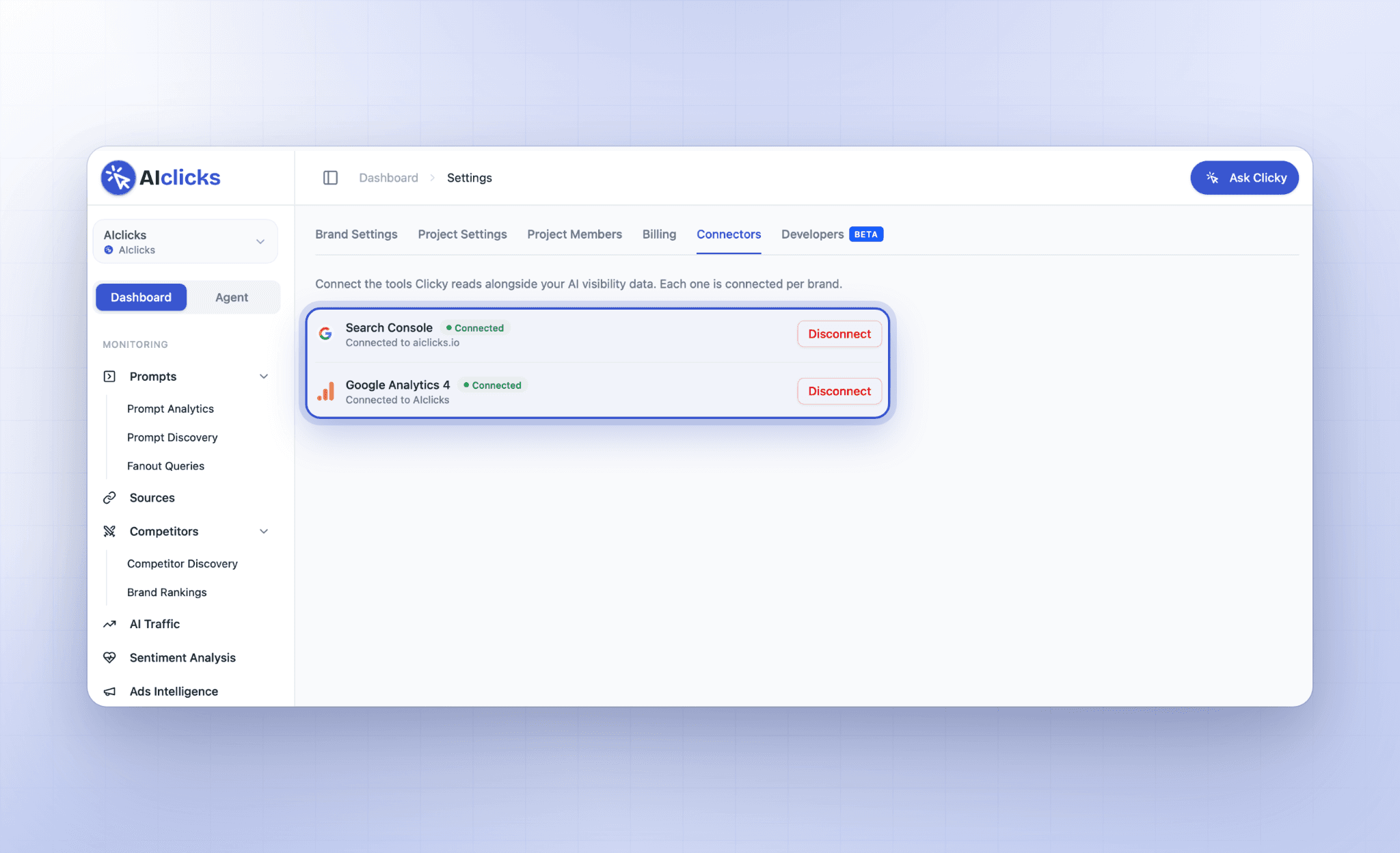
With GA4 connected, Clicky can tell you how much traffic AI engines like ChatGPT and Perplexity send to your site and which pages they land on. With Search Console connected, it can answer questions about your Google search performance.
If either isn't set up yet, Clicky shows a connect button right in the chat and continues the answer once you connect.
Content Recommendations
Before suggesting content, Clicky reads the articles you've drafted or published through AIclicks. You won't get a recommendation for a piece you've already written.
Citation Shape Audit and Source Action Plan
These two expert runs go deeper than a single question, and you can start either from the sidebar or the composer.
Citation Shape Audit reviews your own pages for the structure AI answers quote from: an opening answer of 40 to 60 words, sections that make sense on their own, question-style headings, and passages that can be lifted into an answer without losing meaning.
Source Action Plan ranks the sources already citing you and tells you where to publish, pitch or comment next.
How to Open Clicky
You can open Clicky in two ways, and both share the same chat history:
Cmd+I on any page opens the Clicky bubble, which is best for a quick question about the dashboard you're looking at.
The Dashboard ⇄ Agent toggle at the top of the sidebar opens the full Agent view for longer work, like comparing competitors across a quarter or running an expert run.
A question you start in the bubble can be picked up later in the Agent view, with your filters carried over.
[GIF: Cmd+I bubble opening on a dashboard and answering over the date range on screen]
How to Use Clicky
Find out why your visibility dropped
Set the date range you care about on the dashboard, press Cmd+I and ask "why did our visibility drop over this period?" Clicky answers over the dates on screen and breaks the drop down by prompt, model and competitor, so you can see which one moved.
Follow up with "show that by model" if you want the chart split further.
Add a prompt you should be tracking
Ask Clicky which prompts you're missing for a topic, or ask it directly to add a specific prompt. It proposes each prompt as a card, already assigned to its topic. Approve the card and the prompt is added to your tracked list.

Start tracking a new competitor
Ask "which competitors are showing up in answers that we aren't tracking?" Clicky lists them from your competitor discovery data and proposes the ones worth adding. Once you approve, the competitor is tracked from that point on.
Find Sources That Cite Competitors but Not You
Ask "which sources cite our competitors and never us?" and Clicky lists the pages where you're missing, so you know where to pitch or publish next.
Compare Your Visibility Across AI Models
Ask "how does our visibility compare across ChatGPT, Perplexity and Gemini this month?" and Clicky answers with a chart and a table from your model leaderboard.
Before You Start
Clicky is a beta release and we're improving it every week based on what breaks and what people ask for. Its answers depend on your setup, so if your tracked prompts and competitors are out of date, start by asking Clicky which prompts and competitors you should add.
If you'd rather work from your own AI assistant, the AIclicks MCP connector still connects your account to Claude, ChatGPT and Cursor.
Get Started With Clicky
Clicky is live on every plan. Open AIclicks, press Cmd+I, and ask about the metric you've been meaning to look into.
Got a feature you want to see next? Send it our way.
Our Content:



Any questions left?
Book a call here: