
" width="14px"><path d="M 13.864 5.629 L 13.3 5.629 L 13.3 5.6 L 7 5.6 L 7 8.4 L 10.956 8.4 C 10.379 10.03 8.828 11.2 7 11.2 C 4.681 11.2 2.8 9.319 2.8 7 C 2.8 4.681 4.681 2.8 7 2.8 C 8.071 2.8 9.045 3.204 9.786 3.864 L 11.766 1.884 C 10.516 0.719 8.844 0 7 0 C 3.134 0 0 3.134 0 7 C 0 10.866 3.134 14 7 14 C 10.866 14 14 10.866 14 7 C 14 6.531 13.952 6.073 13.864 5.629 Z" fill="rgb(255, 193, 7)" height="14px" id="H_YjfTNpn" width="14px"/><path d="M 0 3.742 L 2.3 5.429 C 2.922 3.888 4.429 2.8 6.193 2.8 C 7.264 2.8 8.238 3.204 8.979 3.864 L 10.959 1.884 C 9.709 0.719 8.037 0 6.193 0 C 3.504 0 1.172 1.518 0 3.742 Z" fill="rgb(255, 61, 0)" height="5.428500000000002px" id="PlkthQDhg" transform="translate(0.875 0)" width="10.959199999999996px"/><path d="M 6.232 5.581 C 8.04 5.581 9.683 4.889 10.925 3.764 L 8.758 1.931 C 8.032 2.483 7.144 2.782 6.232 2.781 C 4.411 2.781 2.865 1.62 2.283 0 L 0 1.759 C 1.159 4.026 3.511 5.581 6.232 5.581 Z" fill="rgb(76, 175, 80)" height="5.581099999999999px" id="WlnJ5gngE" transform="translate(0.7 8.4)" width="10.924899999999994px"/><path d="M 6.864 0.029 L 6.3 0.029 L 6.3 0 L 0 0 L 0 2.8 L 3.956 2.8 C 3.68 3.576 3.183 4.254 2.526 4.75 L 2.527 4.749 L 4.693 6.582 C 4.54 6.722 7 4.9 7 1.4 C 7 0.931 6.952 0.473 6.864 0.029 Z" fill="rgb(25, 118, 210)" height="6.589883930775992px" id="x_rSW275p" transform="translate(7 5.6)" width="7px"/></g></svg>)


Reviewed by:
Matas Kibildis

Head of Growth @ aiclicks.io
Last updated:
Expert Verified

Remember the API and MCP server we said was coming next?
It went live in June, read-only. But now, it’s not just limited to read-only anymore.
You can now tell your AI assistant to add a prompt, start tracking a competitor, or create a brand and kick off analysis, without touching the dashboard. There's also a new ChatGPT Ads toolset, so you can now ask who's paying to appear against the prompts you track.
Both the API and the MCP reach the same data: brand visibility, mentions, citations, the prompts you track, and the fan-out queries LLMs actually run to answer you. They're two ways in.
The API is for building: Pull your data into a warehouse, a BI tool, a scheduled report, or your own script.
The MCP is for asking, and now for doing: Connect Claude, Cursor, or any AI assistant, ask about your visibility in plain English, and tell it to set things up for you.
Use whichever fits how you work, or both. They share the same ak_live_ key, available on the Pro, Business, and Enterprise plans, and setup for either takes a couple of minutes.
What Changed Since June
Here are five things new since then.
A one-click listing in Claude: AIclicks is now in Claude's connector directory. On Claude web, connecting is a search and a sign-in, with no custom connector to build and no key to paste.
Write access: Three new actions: add a prompt, add a competitor, create a brand. Pro plan and up. Your assistant confirms before it writes anything.
ChatGPT Ads intelligence: Five new views on the ads running against your tracked prompts: headline KPIs, an advertiser leaderboard, a daily activity timeline, the prompts that triggered ads, and the ad cards themselves.
Multiple connectors at once: Minting a new key no longer revokes your old one, so Claude Desktop, Claude web, Cursor, and a teammate's setup can all stay connected side by side.
A rebuilt key manager: One keys table with a Type badge (Team key or Master key) instead of two separate lists.
Catalog look-ups: List-competitors, list-tags, and list-topics let your assistant resolve names to the right IDs before it writes.
What you get, either way
Everything is built around one idea: a domain, the prompts you track for it, and how AI engines respond.
The API exposes it as read endpoints; the MCP wraps the same data as tools your assistant can call. On top of that sit the write actions and the ChatGPT Ads set.
Endpoint | What it returns | Use it for |
/validate | Key status, team, scope, rate limit | Confirming a key works and what it can reach |
/domains | Your tracked domains and their IDs | The domain_id every other call needs |
/prompts | The prompts you track for a domain | Auditing or exporting your prompt list |
/fanout-queries | The real searches LLMs ran to answer your prompts | Finding what to publish for AI search |
/mentions-time-series | Daily count of responses that named your brand | Tracking raw exposure |
/visibility-time-series | Daily share of responses that named you (%) | Tracking your hit rate |
/citations-time-series | Daily count of responses that cited your site | Tracking high-value pickups |
/citability-time-series | Daily share of responses that cited you (%) | Tracking citation rate |
/model-leaderboard | Per-engine visibility ranking across ChatGPT, Perplexity, Gemini, Claude, and more | Seeing which AI engine surfaces you best |
/brand-rankings | You and your tracked competitors, ranked by mentions, visibility, and share of voice | Benchmarking against the competitors you track |
/citations | Every URL cited for your prompts, classified by page type (yours, competitors', third-party) | Finding what gets cited and where to pitch |
Change Your Setup (NEW)
Action | What it does | Use it for |
Add prompt | Adds a prompt to a domain and starts tracking it | Seeding a new topic without opening the app |
Add competitor | Adds a competitor to a domain's tracked set | Reacting the moment a rival shows up in an answer |
Create brand | Creates a brand/domain and kicks off analysis | Onboarding a client or a new product line |
list-competitors | The competitors already tracked for a domain, with IDs | Resolving a name to an ID before you write |
list-tags | Your existing tags, with IDs | Tagging into the right bucket, not a near-copy |
list-topics | Your existing topics, with IDs | Filing a new prompt under a topic that exists |
See Who's Advertising On ChatGPT (NEW)
View | What it returns | Use it for |
Ads overview | Prompts showing ads, brand appearances, unique advertisers, each with a period-over-period delta | The weekly "is this getting worse" number |
Advertiser brands | A leaderboard of brands advertising against you, ranked by how many of your prompts they cover | Spotting who just started bidding on your space |
Ads timeline | Daily ad activity across your tracked prompts | Seeing when a campaign switched on |
Prompts showing ads | The exact prompts that triggered ads | Knowing which questions are now paid territory |
Ad cards | The individual ad creatives seen against your prompts | Reading a competitor's actual pitch |
Exact tool names and parameters are in the API reference and the MCP docs.
Build With The API
Step 1: Check you have access
The API is on the Pro, Business plan, and Enterprise. On Starter, you'll need to upgrade first.
Step 2: Create a key
In the app, open Settings → Developers. Your keys live in one table now, with a Type badge showing whether each is a Team key or a Master key, plus its name, prefix, status, last-used date and created date.
If you work in a single project, click Create key. If you're across several, you'll see New team key (scoped to one team) and New master key (reaches every team you belong to). Copy the key when it appears (it starts with ak_live_) and store it somewhere safe, because you won't see it in full again.
Creating a key no longer revokes the ones you already have, so you can run separate keys for Claude Desktop, Cursor, a scheduled script, and a teammate, and retire them one at a time.
Step 3: Validate it before you build anything
A call to GET /api/v1/validate confirms the key is live and shows which teams and domains it can reach. Run it first whenever something downstream returns a 401 or 403.
One call confirms the key works and shows exactly what it can reach:
curl https://api.aiclicks.io/api/v1/validate \
-H "Authorization: Bearer YOUR_API_KEY"
You get back your teams, the domains the key is allowed to touch, and your rate limit:
{
"data": {
"valid": true,
"key_type": "api_key",
"key": {
"id": "fae8acf7-5117-460c-a75e-5fbafc097dfb",
"name": "new",
"created_at": "2026-06-08T09:45:02.282446+00:00"
},
"user_id": "440b3def-e5f5-4bb2-8634-04f4887bff35",
"teams": [
{
"id": "7a08f3a3-529a-4b4f-9166-988a9e7f635c",
"name": "Leapsly2",
"developer_access": true,
"domains_count": 24
}
],
"allowed_domains": null,
"rate_limit": {
"limit_per_minute": 60,
"remaining": 60,
"reset_at": 1782724651
}
},
"generated_at": "2026-06-29T09:16:34.992500+00:00"
}
If developer_access reads false, the key is valid but API access isn't on for the team yet. That's the first thing to check when a call comes back empty.
Step 4: Grab your domain_id
Hit GET /api/v1/domains returns every domain the key can see, each with an id. You pass that domain_id to every data endpoint.
List your domains and copy the id you want:
curl https://api.aiclicks.io/api/v1/domains \
-H "Authorization: Bearer YOUR_API_KEY"
Step 5: Pull your data
Use the API Reference to find the endpoint you need. This returns daily visibility for last 90 days:
/api/v1/visibility-time-series?domain_id=DOMAIN_ID&days=90
curl "https://api.aiclicks.io/v1/domains/visibility-time-series?domain_id=DOMAIN_ID&days=90" \
-H "Authorization: Bearer YOUR_API_KEY"
Every response comes back as JSON with a data field and a generated_at timestamp. Pagination, date windows, and the rest of the endpoints are in the API reference.
Validate, find your domain, pull data. You're capped at 60 requests per minute, which covers reporting and daily syncs comfortably. Space out heavy jobs so you don't hit the ceiling.
Or Just Ask, With The MCP
If you'd rather not write calls at all, connect the MCP and ask your AI assistant.
On Claude web you don't need the URL or the key at all, since AIclicks now sits in Claude's connector directory.
Once it's connected, you can ask things like:
"How visible is my brand in AI search this week?"
"Which sources are LLMs citing when they mention us?"
"Compare our share of voice against competitors over the last 30 days."
"Which prompts are losing visibility month over month?"
"Where are we underperforming on Claude vs ChatGPT?"
And now you can tell it to change things:
"Add these five prompts to acme.com and start tracking them."
"Start tracking Beta Corp as a competitor for acme.com."
"Create a brand for acme.com and generate prompts for it."
Your assistant routes each question to the right tool and hands back live numbers. Before it writes anything, it shows you what it's about to do and waits for a yes. Full per-client steps live at docs.aiclicks.io/setup; the quick versions are below.
Claude on the web
Here’s the simplest way to add AIclicks to Claude.
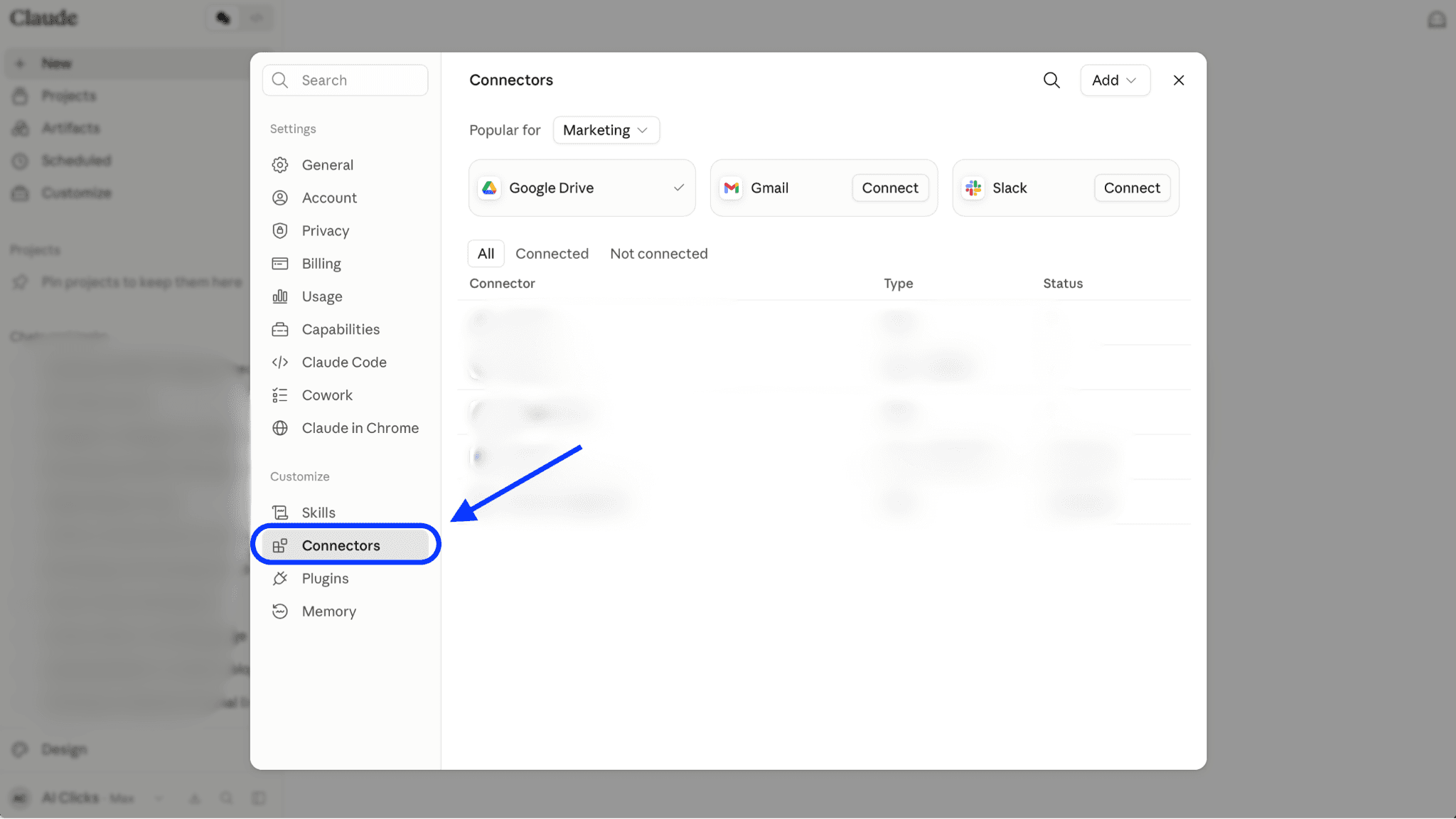
Step 1: In Claude, go to Customize → Connectors.
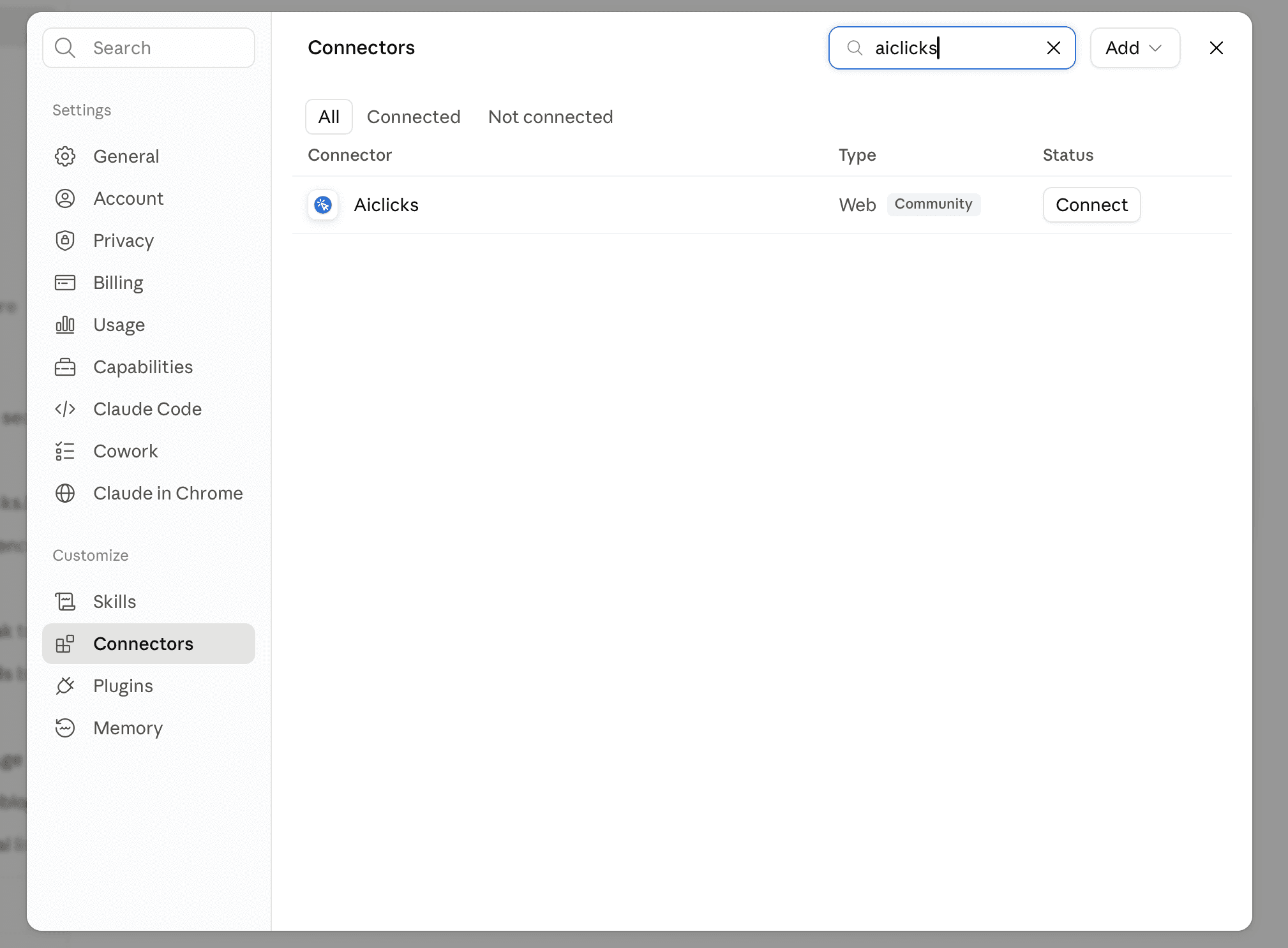
Step 2: Search for AIclicks and click Connect. A window opens to AIclicks. Sign in if needed, pick the team to grant access to, and click Allow. You can also open the listing directly at claude.ai/directory/aiclicks.
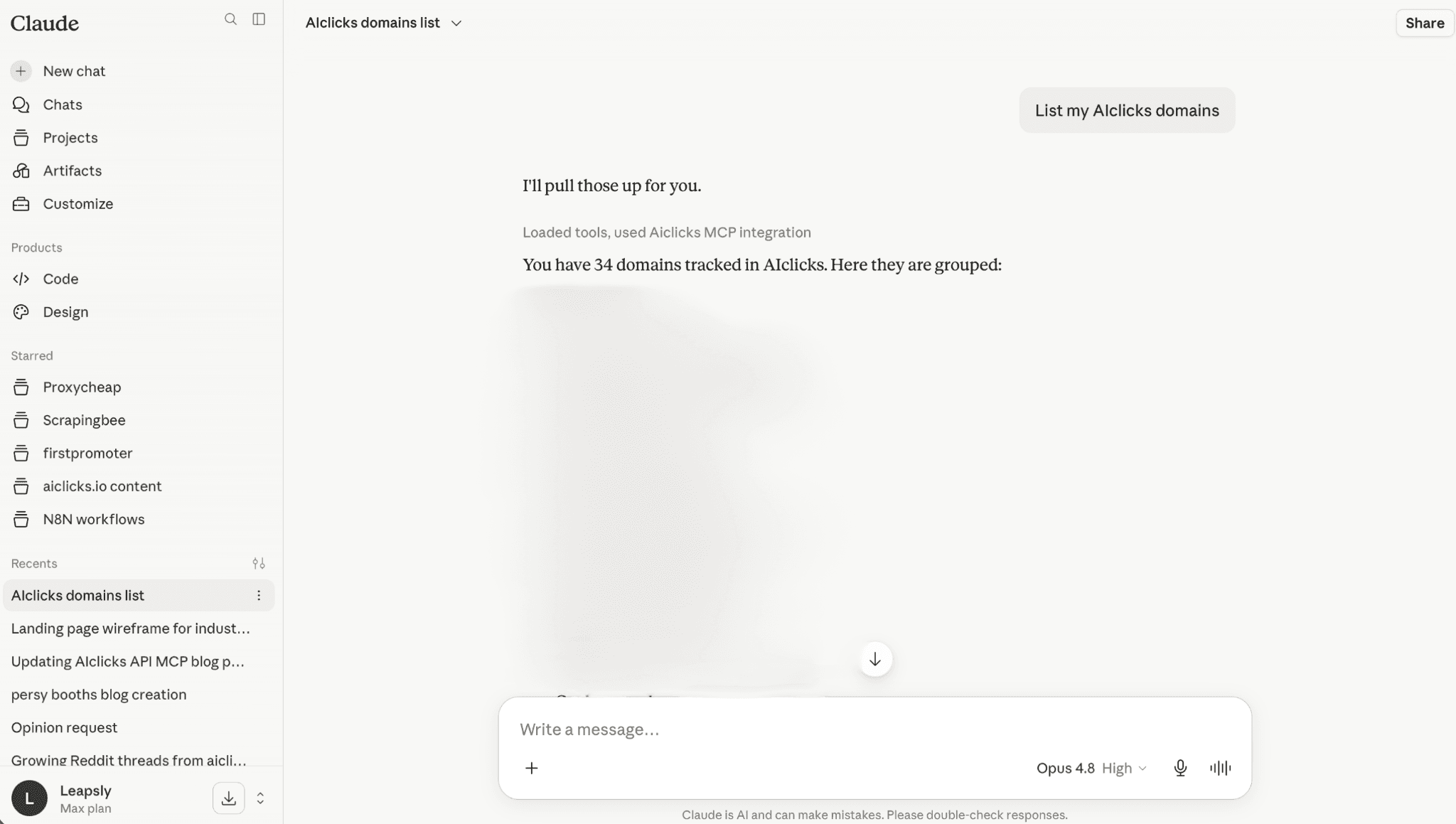
Step 3: Start a new conversation and ask: "List my AIclicks domains." If it lists them, you're connected.
Prefer to add it by hand? The custom connector route still works: + → Add custom connector, name it AIclicks, URL https://mcp.aiclicks.io/mcp. Leave the Authorization header blank, which is what triggers sign-in.
Using Claude Desktop, Cursor, or another client?
Those connect with your ak_live_ key instead of sign-in. The fastest is Claude Code, one command:
claude mcp add --transport http aiclicks https://mcp.aiclicks.io/mcp \
--header "Authorization: Bearer YOUR_API_KEY"
Run claude mcp list and aiclicks should show as Connected.
All of these can run at once now. Claude web signs in, Claude Desktop and Cursor each use their own key, your colleague uses theirs, and none of them knock the others offline.
For Claude Desktop, Cursor, and every other client, the exact config for each is on the setup page. The complete tool list and ready-made prompts are in the MCP docs.
Seven ways to put it to work
You've got a key and data coming out of it. Here's where that data earns its place in your week, from a simple reporting pull to the endpoint that tells you what to publish next.
1. Set AIclicks up from the chat
Onboarding a brand used to mean the dashboard: create the domain, wait for prompts to generate, add competitors, tag things. Now you can say it instead.
"Create a brand for acme.com and generate prompts for it."
Your assistant calls the create brand action, AIclicks starts analyzing, and everything lands in the same workspace you'd see if you'd clicked through the wizard. Same with "add these five prompts to acme.com" and "start tracking Beta Corp as a competitor."
Two things keep this from being fiddly. Your assistant confirms before it writes, so a misheard brand name doesn't quietly become a live domain. And the catalog look-ups let it resolve names to IDs first, so "file these under Pricing" hits the Pricing topic you already have instead of a near-duplicate.
One thing we chose not to build: unattended automations. The request we hear is a script that creates brands and seeds prompts overnight, and we'd rather every write stayed something a human said yes to. Setup mistakes take seconds to make and an afternoon to unpick, and a confirmation step costs you neither.
Do this: next time you onboard a client, open the chat instead of the app. Create the brand, seed the prompts you already know matter, and add their three closest competitors in one message.
2. See who's buying ChatGPT ads against you
ChatGPT now shows ads, which means some of the answers your buyers read have paid placements sitting next to them. Until now there was no way to tell whether anyone was bidding against your topics.
Ask your assistant who's advertising against your tracked prompts and five things come back: the headline numbers with their change against the previous period, a leaderboard of advertising brands ranked by how many of your prompts they cover, a daily timeline of ad activity, the exact prompts that triggered ads, and the ad cards themselves.
This covers the prompts you track, not the whole ChatGPT ad market. The narrower scope is the useful part, because what you need to know is who's bidding on your questions.
Do this: pull the advertiser leaderboard weekly and watch for movement. A competitor going from two of your prompts to fifteen is a budget decision worth catching while your own planning cycle is still open.
3. Get your AI visibility out of the dashboard
Right now your visibility, citations, and mentions live inside AIclicks. Your ad spend sits in one place, your organic numbers in another, your revenue in a third.
The API lets you pull the four time series into the same Looker, Metabase, or Google Sheet as the rest of your marketing data, so AI search shows up in the weekly view you already read instead of a tab you have to remember to open.
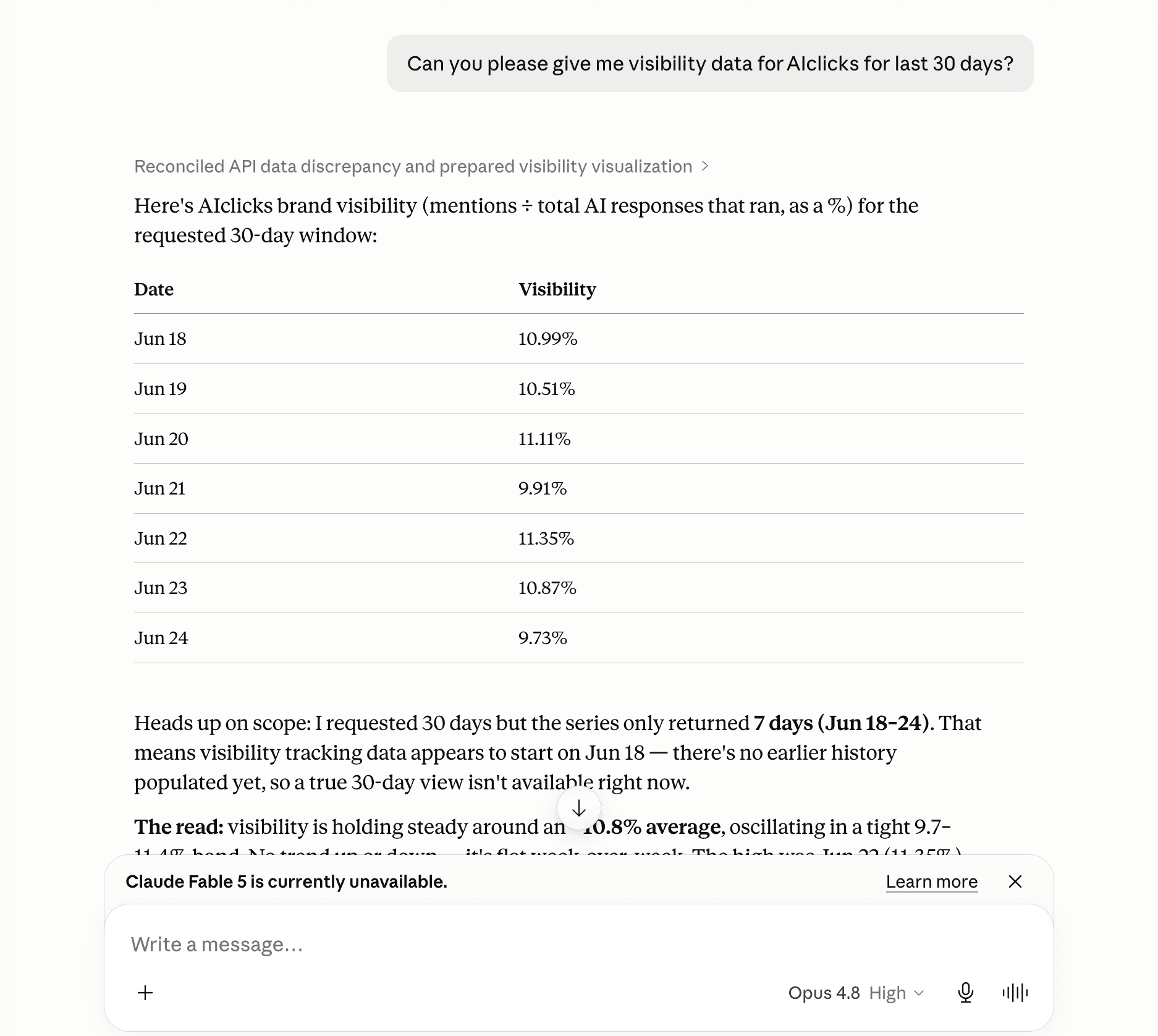
Pull them on a schedule and you have a live feed.
4. Turn fan-out queries into a content roadmap
This is the endpoint to start with.
When an LLM answers one of your tracked prompts, it runs its own background searches to ground the answer. /fanout-queries returns those real searches, grouped under the prompt that triggered them and attributed to the model that ran them.
That list is the closest signal there is to "what should I write to get cited", because it's what the models are already looking for on your topics.
Pull 90 days, flatten the result, and count how often each query repeats. The ones at the top are your next briefs. Filter by model and you can see what ChatGPT is searching for that Perplexity isn't.
Do this: pull fan-out queries for your top domain, rank them by frequency, and hand the top 20 to whoever writes your briefs.
Here’s a glimpse:
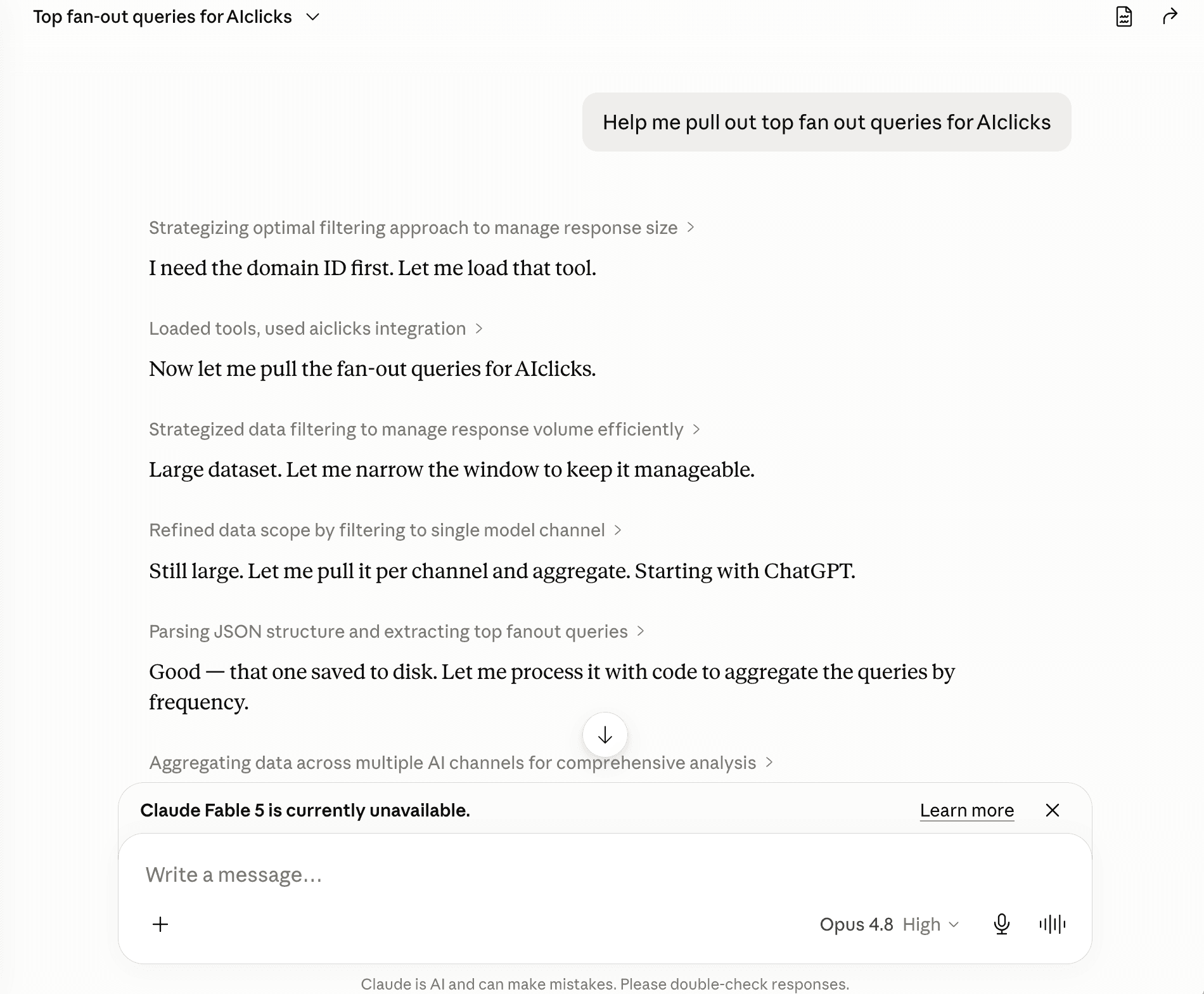
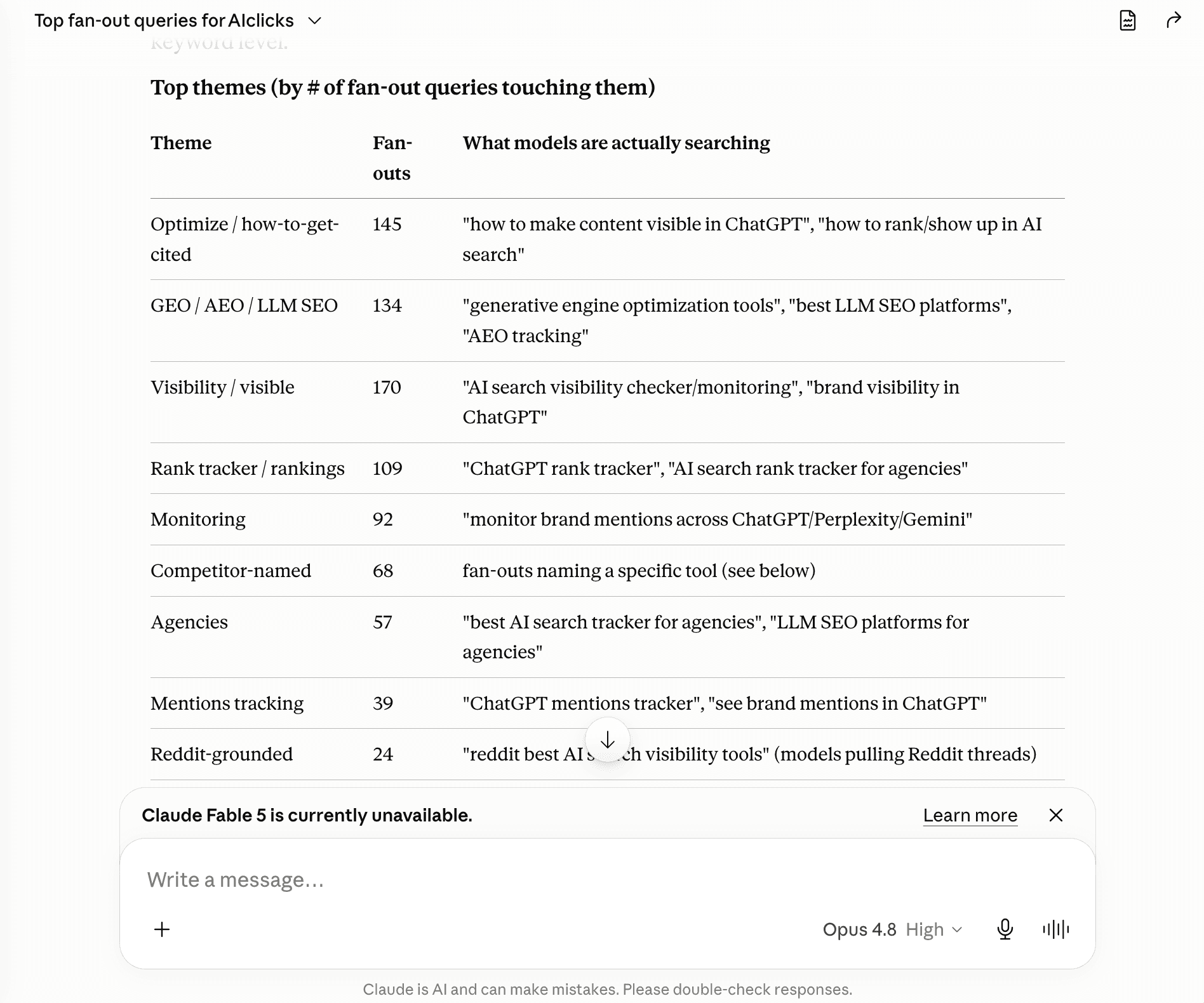
Pretty simple, isn’t it?
5. Join it against your SEO stack
AIclicks tells you where AI mentions and cites you. Your rank tracker tells you where you sit in classic search.
Put the two side by side with the API and the gaps surface on their own: prompts where competitors get cited and you don't, topics where you rank on Google but stay absent from AI answers. Learn more about how to get cited by AI.
Each gap is a specific page to write or a specific site to pitch.
6. Build reporting that runs itself
If you export CSVs by hand every month for a client deck or an exec update, the time-series endpoints replace that work.
Point a script or an automation flow at the visibility and citations series, format it once, and the report rebuilds itself on whatever schedule you set.
The write actions need your approval in the chat, so a scheduled job pointed at the time-series endpoints can only ever report and never change your setup, no matter what goes wrong upstream.
If you run four or more clients, this replaces a morning of copy-paste.
7. Watch every brand from one board
For agencies and multi-brand teams, loop over /domains, pull the same metrics for each, and you have one visibility board across every client without opening a workspace per account.
One glance tells you who climbed and who slipped this week, and where to spend your outreach and mention effort next.
A master key reaches every team you belong to, so the same chat that creates a new client's brand and seeds its prompts can report on that client alongside all the others a week later.
Before you build, a few things
Worth knowing before you wire in either one:
Write actions are on Pro, Business, and Enterprise, and the key has to belong to a team with developer access. Starter has no API or MCP access at all.
Your assistant confirms before it writes. Adding a prompt or creating a brand is something you approve in the chat, so don't wire the write actions into an unattended job and expect them to fire on their own.
Reads cache for about an hour. A change you make in the dashboard shows up after the cache clears, not the instant you make it.
Day windows are relative, so you ask for the last 7, 30 or 90 days. There's no custom start-and-end date picker in the API or MCP yet.
The default rate limit is 60 requests a minute per key, shared across the API and the MCP. Plenty for reporting. List domains in one call, then space out or cache the per-domain pulls, since they're one request each.
A key only sees the domains it's scoped to. Run /validate (or ask the MCP) if a domain you expect is missing.
Single days bounce. Read the 30 and 90-day shape, not any one date.
Turn it on
On Pro, Business, or Enterprise? Open Settings → Developers and create a key. From there:
To build, the full endpoint reference is at docs.aiclicks.io/api.
To just ask, connect the MCP server. On Claude web, search AIclicks in your connector settings and sign in. Everywhere else, use that same key.
Not on those plans yet? API and MCP access ship with Pro, Business, and Enterprise. If you're still clicking through the wizard for every new brand and exporting visibility into reports by hand, it pays for itself in the time you stop spending on both.
That's the API and the MCP. Go build something with it.
Got a feature you want next? Send it to our feature request board. We read every one.
New to AIclicks? Start your 3-day free trial.
Our Content:




Any questions left?
Book a call here: